
Day view
The popover shows the selected day in full depth: what you did and when, how far along you are toward today’s target, and which activity is running. By default activities are grouped by group, and every row carries a colored progress bar.
How to read the view
Section titled “How to read the view”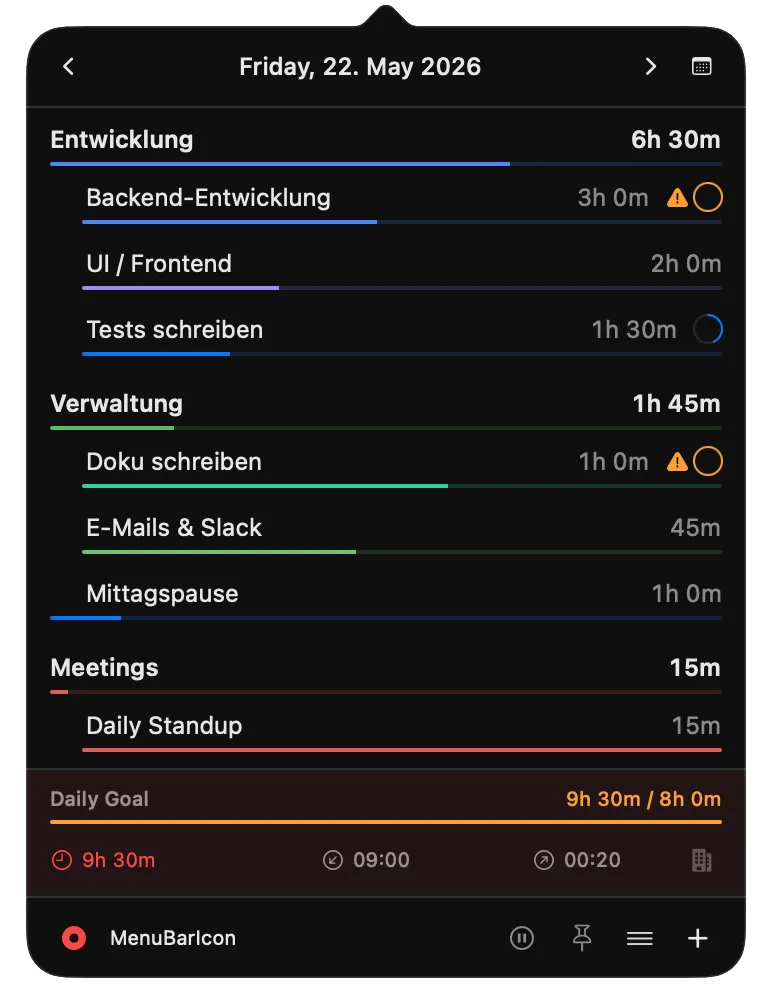
- Date navigation. Arrows step one day at a time. Clicking the date in the middle jumps back to Today. The calendar icon on the right opens a month picker for targeted jumps.
- Group header. Each activity group shows its day total and a bar whose width reflects the share of the day total. The color is the group’s color.
- Activity row. Indented under the group, each activity is listed with its tracked duration. The bar below it shows the share of the group total (or, when ungrouped, of the day total). Hovering over the dot on the left reveals a play button that starts the activity as the current one — today only.
- Weekly goal indicator. When an activity has a weekly goal, a small ring appears at the end of the row and fills as the week progresses. When you go over the goal, the ring turns orange and a warning triangle appears next to it — you’ve overrun the plan.
- Daily target. The bar compares the time tracked today against your daily target (
actual / target). Once you pass the target or the overtime thresholds configured in Settings, the bar turns orange or red. - Day metrics. From left to right: today’s total, the start of the first entry, the end of the last entry, and the location icon. Clicking the icon toggles the day between office and home office; with a weekly office target set, the building fills proportionally to the days achieved.
- Control bar. Recording toggle with the running activity’s name, start or end a break, pin the popover (stays open even when you click outside), menu with Settings and Timesheet, and + to create a new activity or add an entry after the fact.
Gaps in your day
Section titled “Gaps in your day”When more than a few minutes go untracked between two entries, NowDoing shows a Gaps block under the last activity row with start, end and duration for each gap. NowDoing does not back-fill them — it’s up to you whether to log them after the fact.
Editing entries
Section titled “Editing entries”Below the groups there’s an Entries disclosure. Open it and every time block of the day is listed with start, end and duration:
- Click the start or end time to open a date picker — shift the boundary down to the minute. Adjacent entries adjust automatically so no gaps or overlaps are created.
- Hover a row to reveal a trash icon and delete the entry.
- Change the activity via the dropdown in the row.
For smaller corrections without opening the disclosure, every activity row carries a ± field. It accepts inputs like +10m, -30m or +1h30m and shifts the duration accordingly.
For longer ranges (week, month, pivot) open the Timesheet window instead — the same inline edits work there, just with more days on screen.
Opening other days
Section titled “Opening other days”Use the arrows or the calendar to switch to past days. Past days are fully editable — the + button adds a retroactive entry for the day you’re currently viewing.
Other view modes
Section titled “Other view modes”The view shown here is the grouped day view, the default. The popover offers two further variants of the same day — a horizontal timeline and a chronological list. Which view fits when is described in Timeline & views.