
First run
On first launch, NowDoing opens an eight-step welcome wizard. Anything you pick here can be changed later in Settings. Use < Back to step back and Continue to move on.
1. Welcome
Section titled “1. Welcome”
Just a greeting — no setup yet. Click Get started to enter the wizard.
2. How often should NowDoing ask?
Section titled “2. How often should NowDoing ask?”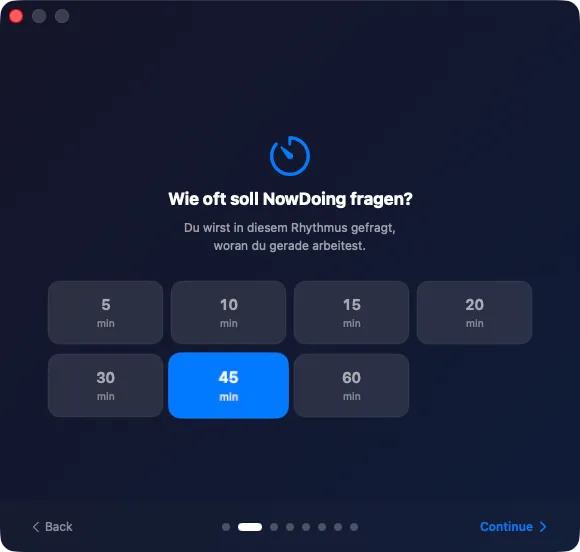
Pick the rhythm at which NowDoing should ask what you are working on. The default is 45 minutes — a balance between accurate data and minimal interruption.
Available intervals: 5, 10, 15, 20, 30, 45, 60 min.
Shorter intervals (10–15 min) give finer data, longer ones (30–60 min) interrupt less. More under Tracking interval.
3. Display & notification
Section titled “3. Display & notification”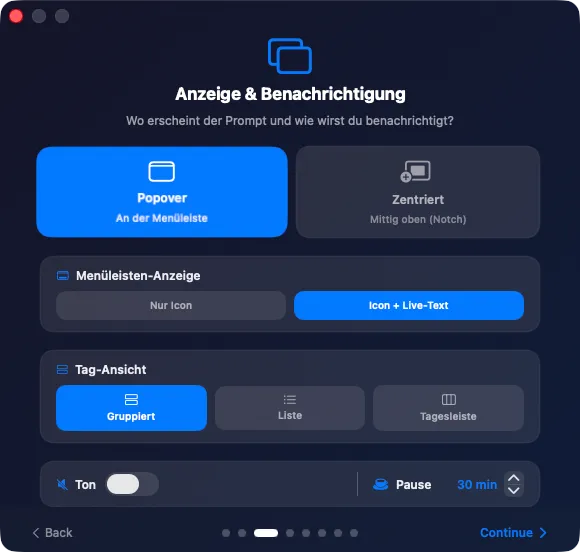
Configure how the prompt appears and how the day is shown:
- Prompt position — Popover (anchored to the menu bar) or Centered (top center, next to the notch). See Prompt display.
- Menu bar display — Icon only or Icon + live text with the current activity.
- Day view — Grouped, List, or Timeline as the default view inside the popover. See Timeline & views.
- Sound — short cue when the prompt appears.
- Break — default length for manual breaks, adjustable in 5-min steps (5–120 min). See Breaks.
4. When do you work?
Section titled “4. When do you work?”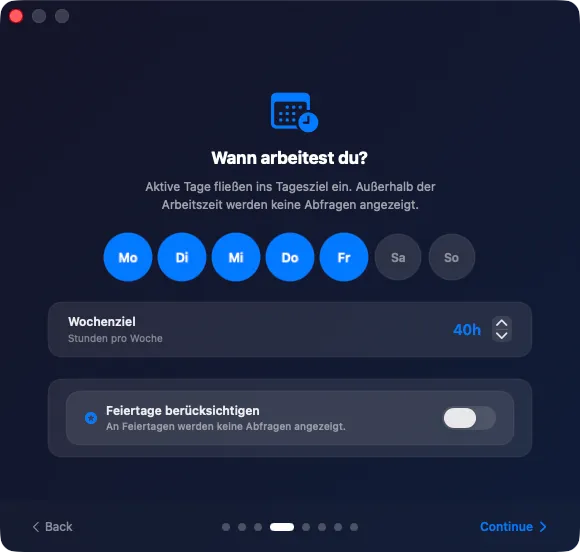
Active days feed into the daily target. Outside working hours, NowDoing shows no prompts.
- Weekdays — tap the days you work.
- Weekly target — your target hours per week (0–80 h).
- Respect public holidays — no prompts on holidays. When enabled, pick your country for the matching holiday calendar.
Details under Working hours & weekly target.
5. Enable integrations
Section titled “5. Enable integrations”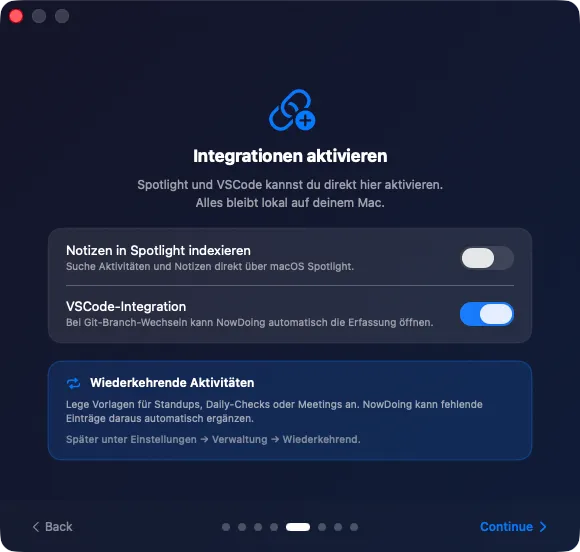
Optional integrations — everything stays local on your Mac.
- Index notes in Spotlight — find activities and notes via macOS Spotlight. See Spotlight.
- VS Code integration — when you switch Git branches, NowDoing automatically opens the prompt. Enabling it stores the security token encrypted in the macOS keychain. Approve the keychain prompt when asked. See VS Code.
The hint about Recurring activities (standups, daily checks, meetings) is informational only — templates live later under Settings → Management → Recurring, see Recurring activities.
6. Your data belongs to you
Section titled “6. Your data belongs to you”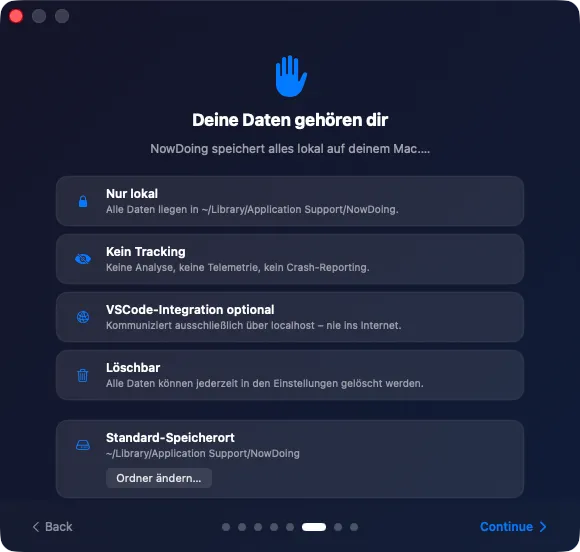
A summary of what NowDoing does — and does not — do with your data:
- Local by default — everything lives in
~/Library/Application Support/NowDoing. - No tracking — no analytics, no telemetry, no crash reporting.
- VS Code integration optional — communication runs strictly over
localhost. - Erasable — data can be deleted anytime in Settings.
Change folder… lets you pick a custom storage location — for example an external drive or a cloud folder. To sync between multiple Macs instead, use iCloud sync in Settings (see Data & privacy) — it merges changes entry by entry. The default keeps the standard location.
7. Bring activities along?
Section titled “7. Bring activities along?”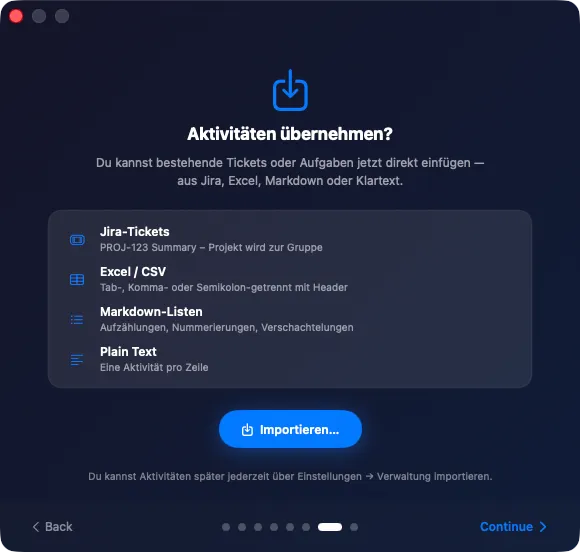
If you already have a list of tickets or tasks, paste it in directly. Supported sources:
- Jira tickets —
PROJ-123 Summarybecomes an activity, the project becomes a group. - Excel / CSV — tab-, comma-, or semicolon-separated with a header row.
- Markdown lists — bullets, numbered lists, nesting.
- Plain text — one activity per line.
Click Import… to paste a list. You can also skip this step and import later under Settings → Management. Details under Import activities.
8. Finish & autostart
Section titled “8. Finish & autostart”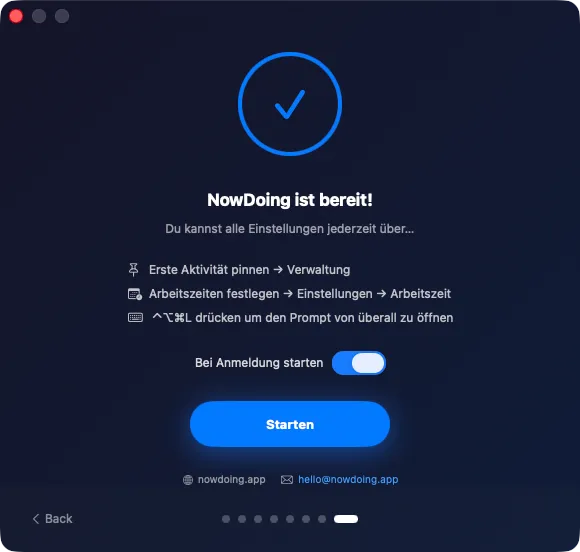
NowDoing is set up. Before you launch:
- Launch at login — recommended, so the tracker is in the menu bar every time you log in.
Hit Start, and the wizard closes. NowDoing now lives in the menu bar — click the icon to open the popover, or press ⌃⌥⌘L to summon the prompt from anywhere.