
Prompt popover
When a tracking interval ends, NowDoing asks “What are you doing right now?”. The answer is three clicks or one keystroke away — and the same popover opens when you log an activity manually via the menu bar icon or the global shortcut ⌃⌥⌘L.
How to read the popover
Section titled “How to read the popover”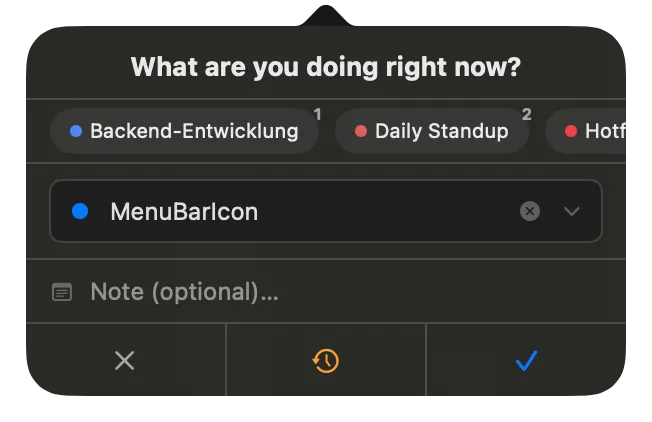
- Headline. “What are you doing right now?” — asks about the activity for the interval that just ended. When you’ve already passed your daily target a “Daily target reached” hint appears with the overtime; after a Git branch switch in VS Code the branch name shows up on a second line (see VS Code).
- Pinned quick-picks. Up to your most-used activities in a horizontal row, each with its color dot and a small number badge in the top right. A click logs immediately; the digits 1–9 trigger the same from the keyboard. Global shortcuts ⌃⌥⌘1–⌃⌥⌘9 work even when the popover isn’t focused. Which activities show up here is set under Activities.
- Combobox. Search or create. Pre-filled with the most recently logged activity. As you type the list filters live; ↑/↓ navigate, Enter confirms. With no match, a “Create …” row appears at the bottom — confirming creates the new activity. The ✕ clears the input, the ⌄ opens the full list.
- Note (optional). Free text for context on this entry — ticket number, meeting title, branch name. When the activity (or its group) has a default note set, it’s pre-filled here; after a branch switch in VS Code the branch name lands here. Enter confirms straight from the field.
- Discard (Esc). The just-ended interval is not logged — as if you hadn’t tracked during that time. Useful for breaks you don’t want recorded. Global shortcuts: ⌃N or ⌃⌥⌘O.
- Snooze (⌃S). Defers the prompt by a few minutes — you’re asked again without losing the interval. The exact value lives in Settings.
- Confirm (Enter). Logs the selected activity (or the one typed into the field) together with the note. Global shortcuts: ⌃Y or ⌃⌥⌘J. The button stays dimmed until either an activity is chosen or a new name is typed.
Keyboard first
Section titled “Keyboard first”The common path needs no mouse:
| Key | Action | |---|---| | 1–9 | Log the pinned quick-pick at that position | | ↑ / ↓ | Navigate the combobox list | | Enter | Confirm the highlighted activity (or create a new one) | | Esc | Reset the input; press Esc again to discard the interval | | ⌃S | Snooze | | ⌃N | Discard | | ⌃Y | Confirm |
Global shortcuts (work even when another window is in front): ⌃⌥⌘L opens the popover, ⌃⌥⌘J confirms, ⌃⌥⌘O discards, ⌃⌥⌘1–⌃⌥⌘9 log a quick-pick directly. The full table lives under Keyboard shortcuts.
When the popover appears
Section titled “When the popover appears”- Automatically at the end of each tracking interval. The interval defaults to 45 minutes and is configurable under Tracking interval.
- On demand via the menu bar icon or the global shortcut ⌃⌥⌘L.
- After a longer stretch of inactivity as the special variant “What did you do for the last X?” — same layout, asks retroactively about sleep, lunch breaks or weekend time.
Where the popover appears (anchored to the menu bar icon or centered at the top of the screen) and whether a sound plays is controlled by Prompt display.
Focus on open
Section titled “Focus on open”When you summon the popover with the ⌃⌥⌘L hotkey, NowDoing briefly activates and the popover window takes keyboard focus. Digits then go straight to a pinned quick-pick and letters jump into the search field — without having to mouse over or click first. As soon as you confirm or cancel, NowDoing returns focus to whichever app was in front before.
This only happens on the hotkey path and only when Prompt display is set to Popover. Clicking the menu bar icon and the automatic interval prompts stay non-activating — they don’t pull focus away from the window you’re working in.